

Email Setup Instructions
Step-by-step guides for setting up your email on phones, tablets, and computers.
Automatic setup is temporarily unavailable
We are upgrading our email system. Until the upgrade is complete, email apps may not find your settings automatically. Your email is working normally. Please choose the manual or advanced setup option in your app and enter the settings below.
Your Email Settings
| Server | mail.indtelnet.com |
| Port | 993 |
| Security | SSL/TLS |
| Authentication | Normal password (or “Plain”) |
| Server | mail.indtelnet.com |
| Port | 465 |
| Security | SSL/TLS |
| Authentication | Normal password (or “Plain”) |
Username: your full email address (for example, name@yourdomain.com).
Password: your email password.
Outgoing server requires authentication: Yes, using the same username and password as incoming.
Setup Guides
Select your device or app. Menu names can vary slightly by version.
iPhone and iPad (iOS / iPadOS)
- Open Settings and tap Apps > Mail (on older versions, tap Mail directly).
- Tap Mail Accounts > Add Account > Other > Add Mail Account.
- Enter your name, full email address, password, and a description. Tap Next.
- Select IMAP at the top.
- Under Incoming Mail Server: Host Name
mail.indtelnet.com, User Name is your full email address, plus your password. - Under Outgoing Mail Server: Host Name
mail.indtelnet.com, the same User Name and password (they are required). - Tap Next, then Save.
- To confirm ports: go back to the account, tap it > Advanced. Make sure Use SSL is on with port 993. Under SMTP > primary server, turn on Use SSL, set Authentication to Password, and port 465.
Android: Gmail app
- Open the Gmail app. Tap your profile picture > Add another account > Other.
- Enter your full email address and tap Manual setup.
- Choose Personal (IMAP), then enter your password.
- Incoming settings: Username is your full email address, Server
mail.indtelnet.com, Port 993, Security type SSL/TLS. - Outgoing settings: turn on Require sign-in, same username and password, SMTP server
mail.indtelnet.com, Port 465, Security type SSL/TLS. - Choose your sync options and tap Next to finish.
Android: Samsung Email
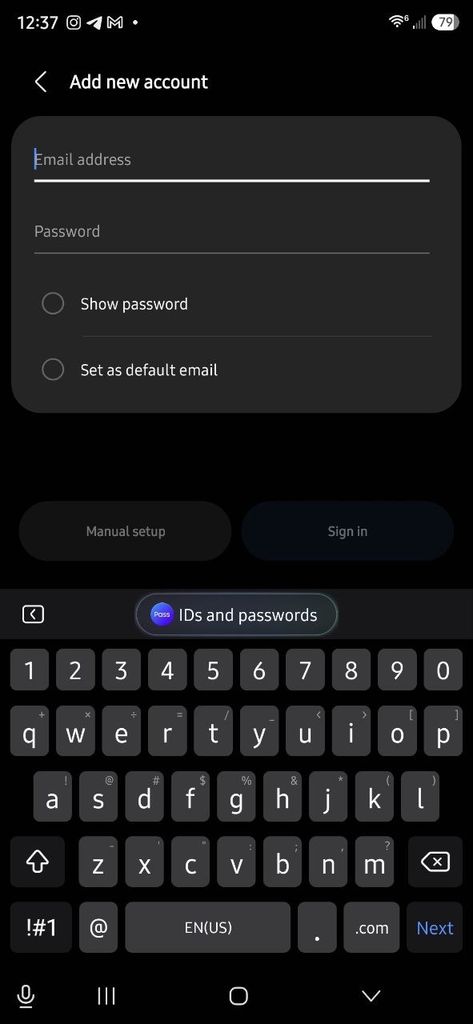
Open Samsung Email. If you already have an account, tap the menu (three lines) > Settings (gear) > Add account, then choose Other. The Add new account screen appears.

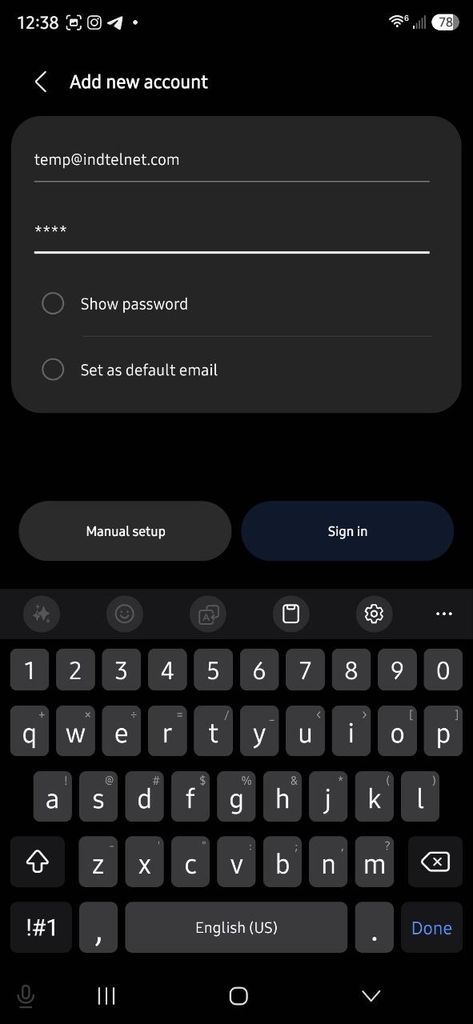
Enter your full email address and your password, then tap Manual setup. Do not tap Sign in.
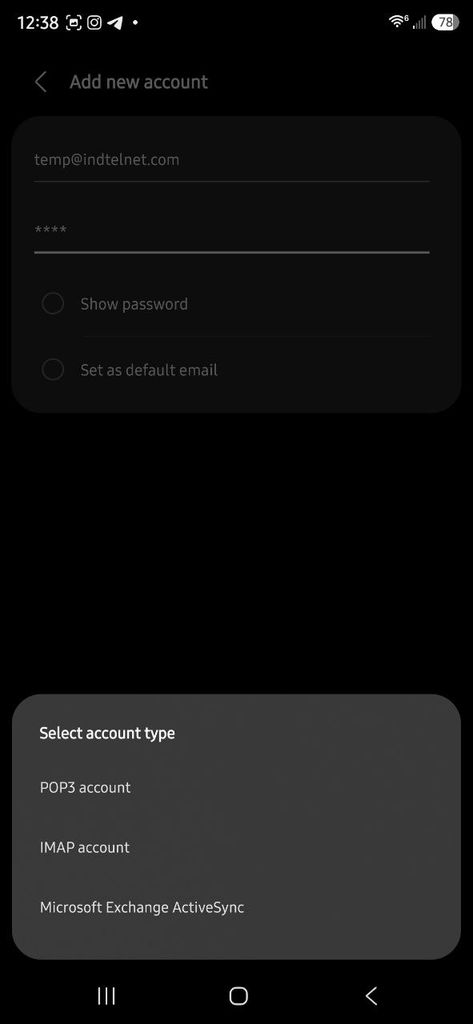
On the Select account type sheet, choose IMAP account.
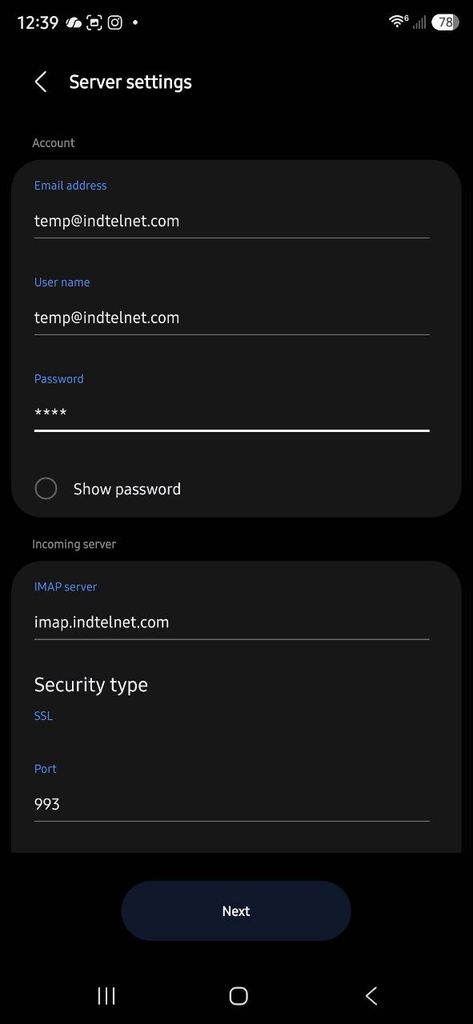
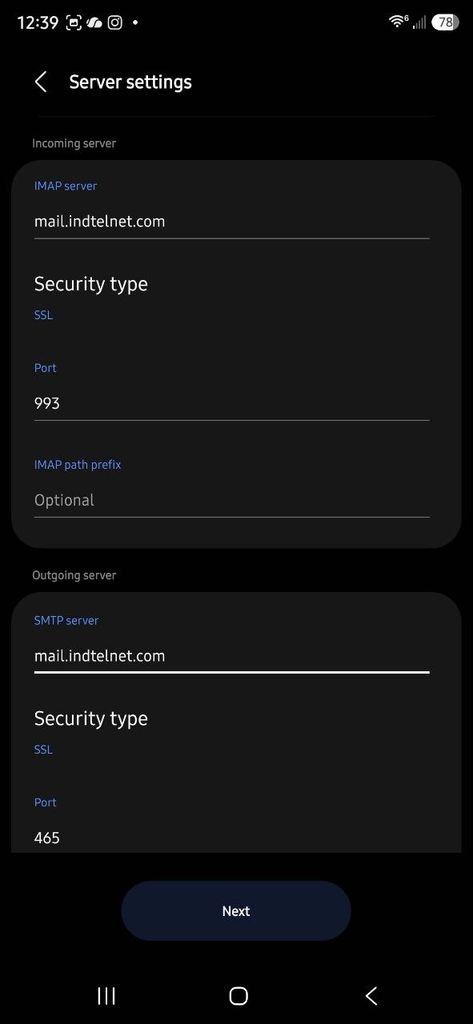
Check the top of the Server settings screen. Your email address, user name (your full email address), and password are filled in.
Important: the IMAP server is pre-filled asimap.indtelnet.com. Change it tomail.indtelnet.comor your account will not connect.Set the incoming settings: IMAP server
mail.indtelnet.com, Security type SSL, Port 993. Then scroll down to the outgoing section.Samsung Email labels the SSL/TLS option simply as SSL.
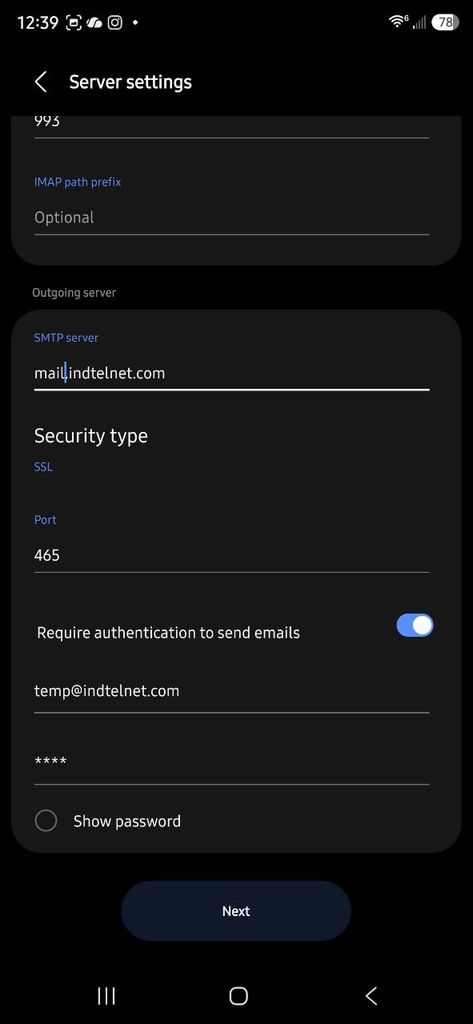
Set the outgoing settings: SMTP server
mail.indtelnet.com, Security type SSL, Port 465. Turn on Require authentication to send emails and enter your full email address and password. Tap Next to finish.
Outlook for Windows (new Outlook)
- Open Outlook and select Settings (gear) > Accounts > Email accounts > Add account.
- Enter your email address and select Continue.
- If Outlook does not detect your settings, select Advanced setup, then choose IMAP. Turn on Show more to see all server fields.
- IMAP incoming server
mail.indtelnet.com, Port 993, Secure connection type SSL/TLS, username is your full email address. - SMTP outgoing server
mail.indtelnet.com, Port 465, Secure connection type SSL/TLS, same username and password. - Select Continue. If Outlook asks to sync the account through the Microsoft cloud, select Continue to finish.
Outlook for Windows (classic Outlook)
- Select File > Add Account.
- Enter your email address, select Advanced options, check Let me set up my account manually, and select Connect.
- Choose IMAP.
- Incoming mail: Server
mail.indtelnet.com, Port 993, Encryption method SSL/TLS. - Outgoing mail: Server
mail.indtelnet.com, Port 465, Encryption method SSL/TLS. Leave Secure Password Authentication (SPA) unchecked. - Select Next, enter your password, and select Connect.
If sending fails, go to File > Account Settings > Server Settings and confirm the outgoing server requires authentication using the same settings as incoming.
Outlook for Mac
- Select Outlook > Settings > Accounts, then the + button > New Account.
- Enter your email address and select Continue. If prompted for a provider, choose IMAP/POP.
- Type: IMAP. Username is your full email address, plus your password.
- Incoming server
mail.indtelnet.com, port 993, check Use SSL to connect. - Outgoing server
mail.indtelnet.com, port 465, check Use SSL to connect. - Select Add Account.
Apple Mail on Mac
- Open Mail and choose Mail > Add Account.
- Select Other Mail Account and click Continue.
- Enter your name, full email address, and password. Click Sign In.
- When Mail asks for more details: Account Type IMAP, Incoming Mail Server
mail.indtelnet.com, Outgoing Mail Servermail.indtelnet.com, User Name is your full email address. Click Sign In. - To confirm ports: Mail > Settings > Accounts > Server Settings. Uncheck Automatically manage connection settings for both servers, then set Incoming port 993 and Outgoing port 465, with Use TLS/SSL checked and Authentication Password. Click Save.
Mozilla Thunderbird
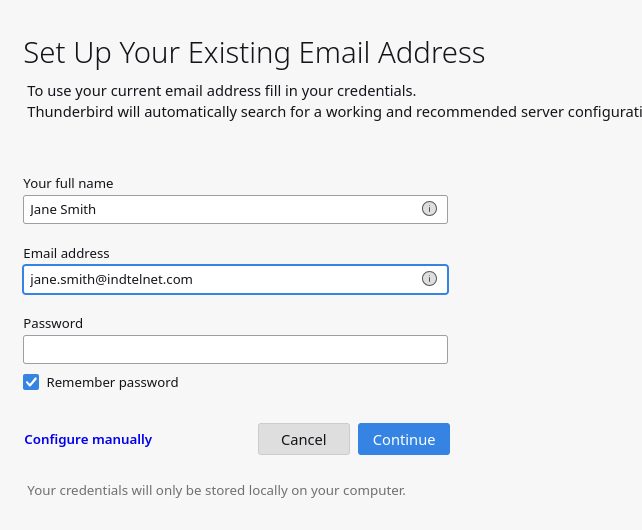
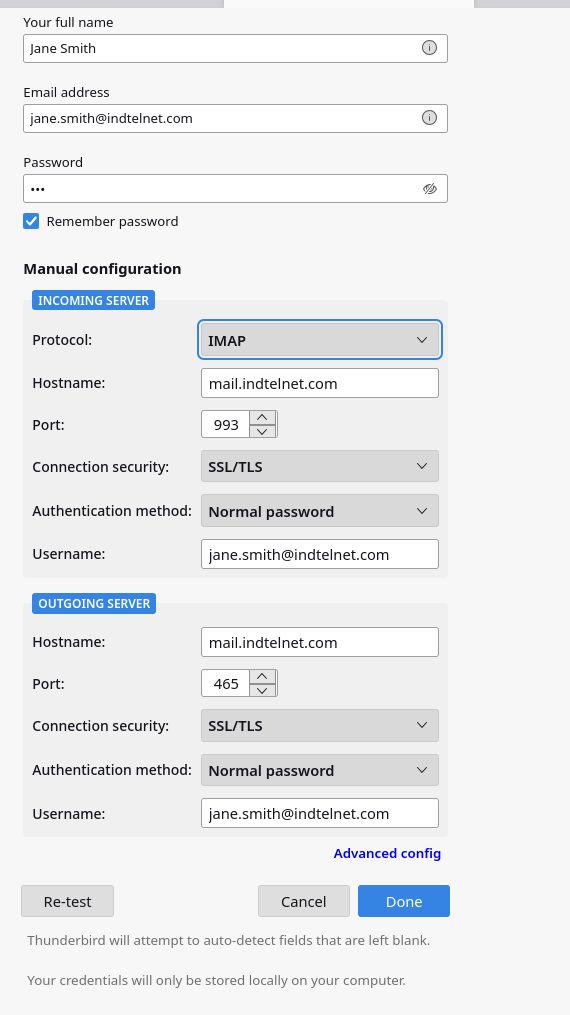
Open Thunderbird and go to Account Settings > Account Actions > Add Mail Account (or use the setup screen on first launch). Enter your full name, your full email address, and your password, then click Configure manually.
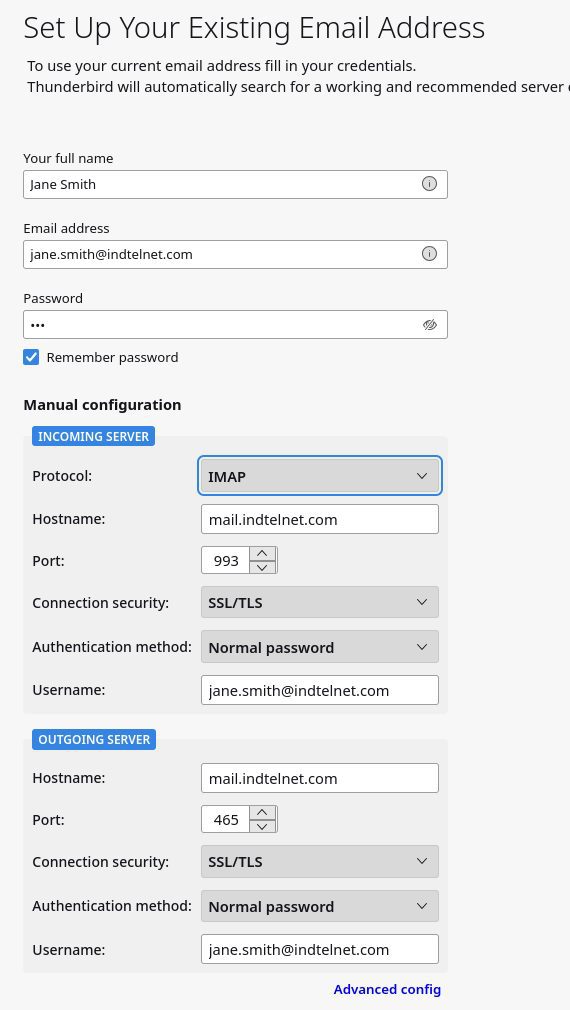
Fill in the server settings as shown.
Incoming server: Protocol IMAP, Hostnamemail.indtelnet.com, Port 993, Connection security SSL/TLS, Authentication method Normal password, Username is your full email address.
Outgoing server: Hostnamemail.indtelnet.com, Port 465, Connection security SSL/TLS, Authentication method Normal password, Username is your full email address.Click Re-test to confirm the settings, then click Done.
Windows Mail (Windows 10)
Microsoft has retired the Windows Mail app and replaced it with the new Outlook for Windows. If you have Windows 11 or the new Outlook, use the Outlook guide above.
- Open Mail and select Settings > Manage Accounts > Add account > Advanced setup > Internet email.
- Account type IMAP4. Username is your full email address.
- Incoming server
mail.indtelnet.com:993, Outgoing (SMTP) servermail.indtelnet.com:465. - Keep all options checked: outgoing server requires authentication, use same username and password, and require SSL for incoming and outgoing.
- Select Sign in.
Troubleshooting
Password or sign-in rejected
Make sure your username is your full email address, not just the part before the @. Retype your password carefully, checking Caps Lock.
Certificate warning or “Cannot verify server identity”
Confirm the server is exactly mail.indtelnet.com. Using any other name can cause a certificate mismatch. If the warning continues with the correct name, contact us before accepting it.
Can receive but cannot send
Check the outgoing (SMTP) settings: port 465, security SSL/TLS, and authentication turned on using the same username and password as incoming. Do not use port 25 or 587.
Account will not connect at all
Check incoming port 993 with SSL/TLS, and authentication set to Normal password (or “Plain”). Make sure the account type is IMAP, not POP or Exchange.
Need Help?
Our support team is happy to help you get set up.